The "Storage Template" feature of Comet Backup lets you set up default storage options, making it easier to assign storage when creating a new "Storage Vault" for users.
Instead of creating and configuring individual buckets for each Comet backup user manually, you can use a "Storage Template" feature to provision buckets automatically.
This article is applicable to Comet Backup version 24.5.0 and later. For versions older than 24.5.0, please refer to this guide.
Prerequisites
- You've got an EU DataVault Storage account.
- You've got an admin account to a Comet Backup Server (Comet documentation)
- Your Comet Backup server software version is 24.5.0 or higher.
Setting Up Storage as a Template in Comet Server
- Log in to your EU DataVault Storage account as root user.
- Create a new key pair for your currently logged in root user.
- Log in to your Comet Backup Server and navigate to Settings.
- Click Authentication under the Roles section.
- Find Storage Templates and hit +Add

- Fill the description and select Impossible Cloud or Impossible Cloud (Object Lock) type, EU DataVault is compatible with the Impossible Cloud integrator. The (Object Lock) type provides an additional layer of protection by preventing backup files from being overwritten or deleted.
-
Paste your EU DataVault Storage Access Key and Secret Key created in the Step 2 of this guide in the appropriate fields.
If you have selected EU DataVault (Object Lock), ensure that the number of day(s) is not 0. This number determines the minimal number of days when your data cannot be deleted or overwritten.
- Configure the storage quota and rebrand if needed.
- Add a user in the Comet Backup server.
Select the storage template you've just created from the Storage drop-down menu: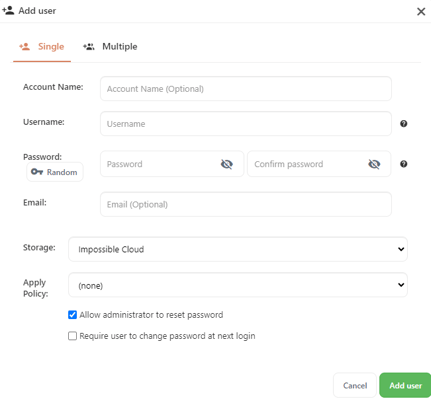
Result
Once the Comet Backup server user has a preconfigured EU DataVault Storage template, you won't need to create a bucket for each Comet Backup user and manually manage it. The Comet backup client can simply start backing up data to EU DataVault Storage.
Note: Using storage templates is recommended, but you can also manually add a new vault if needed. For example, this can be useful if you want to specify custom bucket names. To do this, click "Add New Vault", select "Custom..", choose EU DataVault as the storage type and follow the on-screen instructions.
Additional information
See more information in the Comet Backup Documentation page.