This guide walks you through integrating EU DataVault Storage as a backup destination in Duplicati. You'll learn how to configure a compatible S3 destination with custom endpoints, and connect your bucket for reliable backups.
Step 1: Install Duplicati
First, you'll need to install Duplicati. Follow the instructions to download and install the application: https://duplicati.readthedocs.io/en/latest/02-installation/
Step 2: Create a Bucket in EU DataVault Storage
You'll need to create a bucket in your EU DataVault Storage console. Here is a link to the EU DataVault Storage documentation, which includes detailed instructions and screenshots for creating a bucket.
Step 3: Add New Standard S3-Compatible Backup Destination
Use the '+Add backup' function in Duplicati's user interface. See more information here.
Use the following configuration parameters in the Backup Destination section:
- Storage Type: 'S3 Compatible'
- Use SSL: Yes (mark the checkbox)
- Server: Custom server URL (): enter your endpoint, for instance, "us-west-1.storage.eudatavault.eu" (without
https://) - Bucket name: the bucket name you've created in Step 2
- 'Bucket create region': select 'Custom region value' and enter your region, for instance, "us-west-1"
- Leave 'Bucket create region' and 'Storage class' default ()
- Folder path: add a folder name for backups
- AWS Access ID: your Access Key from EU DataVault Console
- AWS Access Key: your Secret Key from EU DataVault Console
- Expand Advanced options, select "s3-ext-authenticationregion" and fill it with your region, for instance, "us-west-1"
- Click 'Test connection' to ensure everything is configured properly
Step 4: Finish the configuration
Click 'Next.'
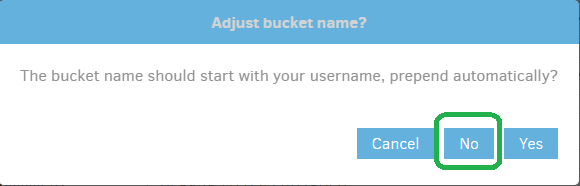
Click 'No' if a pop-up asks, "Adjust bucket name?"
Step 5: Add Source Data and Start Backing Up
Finally, you're ready to add source data to your backup job and start backing it up.